Overview
This section explains how to start the tool and how the screen is organized.
How to start
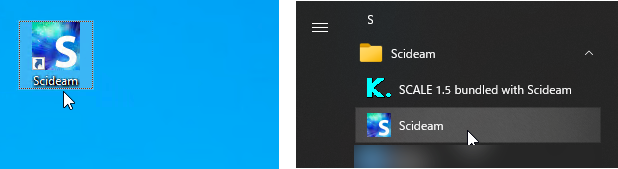
Start Scideam from the desktop icon or from Scideam in the Start menu.
Screen layout
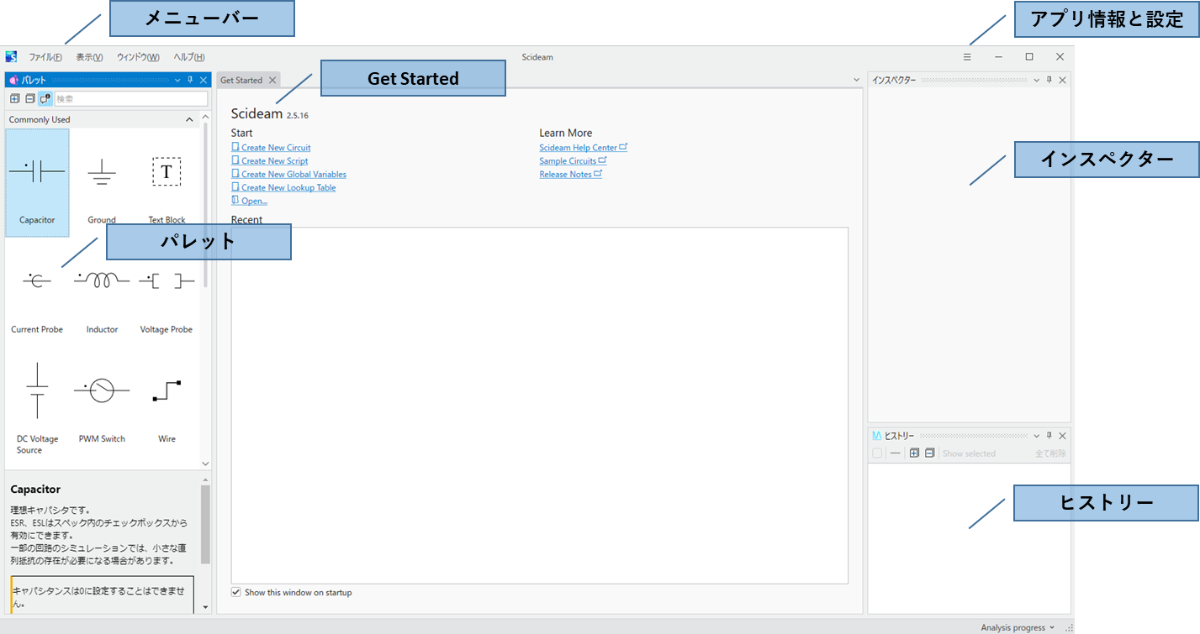
On the first start, Scideam opens with the layout shown in the figure.
Note
From the second time onward, Scideam starts with the layout that was in place when it was last closed.
Menu bar
This is the menu used to create, load, and save circuit model files, and to show and operate windows.
File lets you create, load, and save various files, and import and export external files.
Display lets you show tool windows again that are currently hidden.
Window lets you operate windows and manage the layout.
Help lets you open the various help pages and the release notes.
Get Started
You can create a circuit model file, or open a recently used file with a single click.
For details, refer to Get Started.
Note
This is a feature implemented in Scideam ver2.5.
Palette
This is the window that lists the parts. Drag a part on the Palette to place it in the circuit model.
For details, refer to Palette.
Inspector
This is the window used to change the parameters of the parts placed in the circuit model, and to check the parameters of the graph tool.
For details, refer to Inspector.
History
This is the window that holds the history of the simulation results.
For details, refer to History.
App info and settings
Here you can check the version of the application and configure the Environment Setting.
You can also change the language, and change the theme color of the app to dark mode.
For details, refer to App info and settings.
How to exit
Exit with Exit in the File menu, the Close button at the top right of the window, or the Alt+F4 key.
